
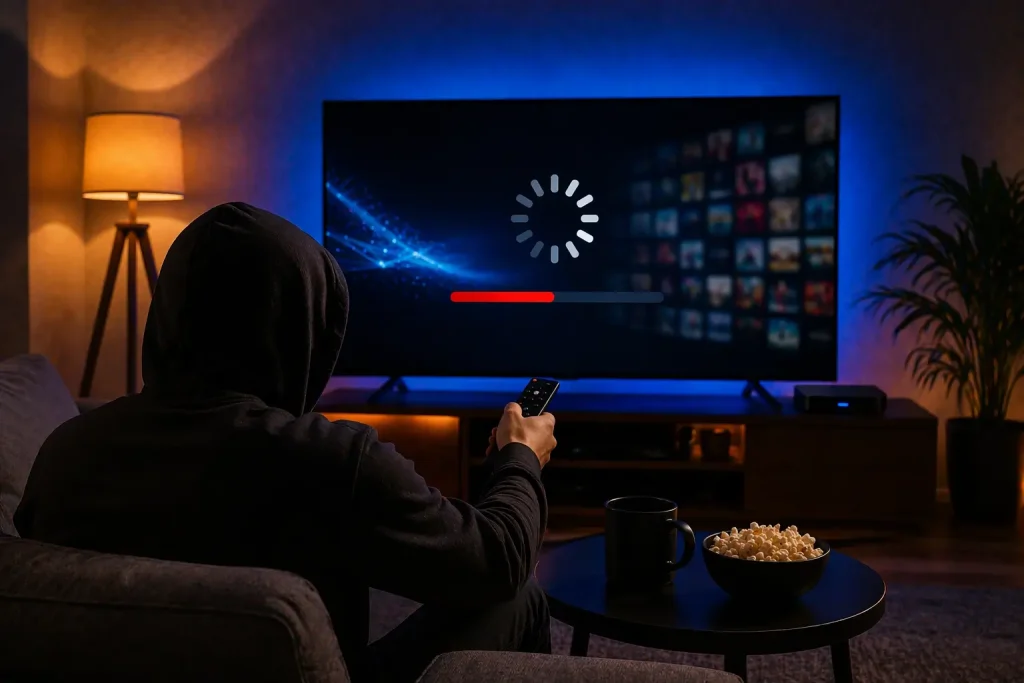
Buffering is almost never “just bad luck” — it’s usually one of a handful of specific causes, and most of them take a few minutes to fix once you know where to look.
Nothing kills a good streaming setup faster than a picture that keeps freezing or a loading wheel that won’t go away. Before assuming your subscription or app is the problem, it’s worth working through the actual causes in order — because most buffering issues live on the network side, not the content side.
01Start With a Real Speed Test, Not a Guess
Run a speed test on the same device (or same network) you’re streaming on, ideally at the exact time you usually watch. According to the FCC’s official broadband speed guide, a stable HD stream needs roughly 5–8 Mbps, while 4K needs around 25 Mbps — and that’s per stream, not per household. If two people are streaming at once, double the number you’re aiming for.
| Stream Quality | Minimum Recommended Speed |
|---|---|
| SD | 3 Mbps |
| HD | 5–8 Mbps |
| 4K | 25 Mbps |
Testing speed on your phone over Wi-Fi while your TV streams over a different connection (like Ethernet or a weaker Wi-Fi band) tells you nothing useful. Test from the actual streaming device whenever possible.
02Wi-Fi vs. Ethernet Matters More Than People Expect
If your streaming device is more than one room away from your router, Wi-Fi signal loss is one of the most common — and most overlooked — causes of buffering. A wired Ethernet connection (using a simple USB-to-Ethernet adapter for devices like a Fire TV Stick) eliminates this variable entirely and is worth testing before blaming anything else.
03Restart in the Right Order
- Turn off your streaming device (Fire TV Stick, Android box, or smart TV app) completely.
- Unplug your router and modem, wait 30 seconds, then plug the modem back in first.
- Once the modem’s lights are stable, plug the router back in and wait for it to fully reconnect.
- Turn your streaming device back on and reopen your IPTV app.
This order matters — restarting devices out of sequence often skips the actual reset that clears the problem.
04Check the App Itself
- Clear the app cache from your device’s app settings — a bloated cache is a common, easily fixed cause of slow channel loading.
- Update the app to the latest version. Older builds are more prone to playback bugs that later updates quietly fix.
- Try a different player app temporarily to isolate whether the issue is the app or the connection. If you’re on a Fire TV Stick, our comparison of IPTV apps for Fire TV Stick covers a few reliable alternatives worth having installed as a backup.
05Rule Out the Device Itself
Older or entry-level streaming devices sometimes struggle to decode higher-bitrate streams smoothly, especially in 4K. If buffering only happens on one specific TV or device while others in the house are fine, the device’s hardware — not your internet or subscription — is the likely bottleneck. Our setup guides for Fire TV Stick, Samsung Smart TV, and LG Smart TV each include the minimum specs worth checking for your specific device.
Still buffering after trying all of the above?
Our support team can check your account and help pinpoint whether it’s a network, device, or app-level issue.
06When It’s Worth Contacting Support
If you’ve confirmed your speed is solid, restarted everything in order, updated the app, and the issue only happens with your IPTV subscription specifically (not with other streaming apps like YouTube or Netflix), that’s the point where it makes sense to reach out rather than keep troubleshooting blind. Have your account details and the specific channel or time the issue happens ready — it makes diagnosing the actual cause much faster.
Frequently Asked Questions
- Does a VPN cause buffering?
- It can. A VPN routes your traffic through an additional server, which sometimes reduces speed depending on server load and distance. If you use one, try temporarily disabling it to see if playback improves.
- Why does buffering only happen during certain times of day?
- This usually points to network congestion — either from your own household using more bandwidth at once, or your internet provider experiencing higher local traffic during peak hours (commonly evenings).
- Does clearing the app cache delete my login information?
- No, clearing cache only removes temporary stored data, not your saved login credentials or playlist.
- Should I restart my device every day?
- Not necessary, but a periodic restart (weekly is plenty) helps clear minor memory buildup that can contribute to slower performance over time.
Most buffering issues resolve with one of the steps above, usually the speed and restart checks. If you’ve worked through this list and it’s still happening, reach out to our team and we’ll help track down exactly what’s going on with your setup.
Source: FCC Broadband Speed Guide

