
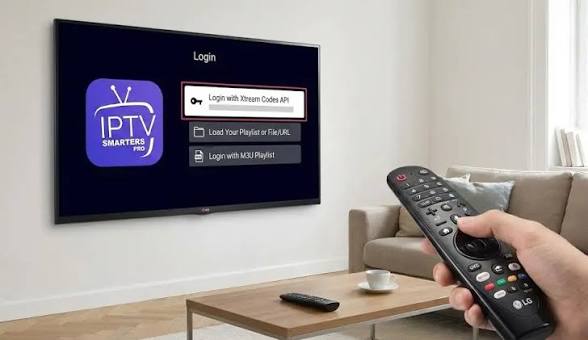
LG’s webOS is the second-most common smart TV platform in American living rooms, and just like Samsung’s Tizen, it doesn’t work the way Android-based devices do. Here’s the accurate, no-guesswork way to get IPTV running on an LG Smart TV.
If you’ve already tried searching your LG TV for “IPTV Smarters Pro” and come up empty, you’re not doing anything wrong. LG TVs run webOS, a closed operating system that only installs apps through the official LG Content Store — there’s no Android-style sideloading built in for regular users.
01Why LG Works Differently From Android Devices
Per LG’s own official support documentation, all app installs on webOS go through the LG Content Store, accessed directly from the Home menu. This is a deliberate closed-ecosystem design, the same reasoning behind Samsung’s Tizen restrictions covered in our Samsung Smart TV setup guide — both companies prioritize a curated, stable app experience over open installation.
02Method 1: Search the LG Content Store First
- Press the Home button on your LG remote.
- Select Apps (or LG Content Store on older webOS versions) from the bottom launcher bar.
- Select the search icon in the top-right corner.
- Type Smarters Player Lite and search.
- Select it from the results, choose Install, then Launch once it finishes.
- Enter your IPTV subscription’s login details or M3U playlist URL inside the app.
App catalogs on webOS vary by region, TV model year, and firmware. If a search comes back empty, that’s the Content Store itself not carrying it for your TV — not a mistake in the steps above. Move to Method 2 rather than trying to force it.
03Method 2: Add a Streaming Device
When an app isn’t available directly through webOS, the simplest and most reliable fix is to plug in a small external streaming device that runs full Android instead of fighting LG’s closed system:
- Fire TV Stick 4K — the most common fix, with zero app-availability issues. Our Firestick setup guide covers the process end to end, and our Fire TV app comparison can help you pick the right player once it’s installed.
- Android TV box — a solid permanent option if you’d rather skip a stick altogether.
This isn’t a workaround people settle for reluctantly — plenty of LG TV owners run a Fire TV Stick anyway, simply because it gets new app versions faster than any TV manufacturer’s built-in store. For a wider look at player options in general, see our roundup of the best IPTV players in the USA.
Have your subscription details ready first
Whichever method fits your TV, you’ll need login credentials or an M3U playlist URL to load anything. Check current plans before you start the setup.
04A Quick Word on “Sideloading” LG TVs
You may come across guides describing an LG “Developer Mode” that allows sideloading of .ipk package files. This exists, but it’s built for app developers testing their own software, not for installing everyday consumer apps — it requires a separate developer account, doesn’t accept standard Android APK files, and isn’t something LG designed for casual use. For a normal household setup, Methods 1 and 2 above cover essentially every practical case.
Frequently Asked Questions
- Why can’t I find IPTV Smarters Pro by that exact name on my LG TV?
- Search for “Smarters Player Lite” instead — it’s the webOS-store version built by the same developer. If neither shows up, your model or region doesn’t currently carry it, and a Fire TV Stick is the reliable fallback.
- Can I install an Android APK on an LG Smart TV?
- No. webOS doesn’t accept Android APK files under any normal consumer setting, unlike Fire TV or Android TV boxes.
- Is a streaming device better than using the LG Content Store directly?
- Not inherently better, just more flexible. It removes the guesswork around whether a specific app version is available for your TV’s region and webOS version.
- Do I need an LG account to install apps?
- Yes, a free LG account and an active internet connection are both required to use the Content Store.
Whichever method matches your TV, the actual setup takes only a few minutes once you know which one applies. If you run into an app that won’t install or aren’t sure which route fits your model, reach out to our team and we’ll help you sort it out.
Source: LG USA Official Support — Using the LG Content Store with webOS

